חת״ת יומי מרכז את הלימוד היומי במקום אחד: חומש עם רש״י, שניים מקרא ואחד תרגום, תהילים, תניא, היום יום, רמב״ם פרק אחד או ג׳ פרקים, וספר המצוות. החלוקה היומית מחושבת לבד לפי התאריך העברי, הטקסטים נפתחים בתוך האפליקציה, ומסמנים מה למדת. האפליקציה חינמית, בלי פרסומות, ועובדת גם בלי אינטרנט.
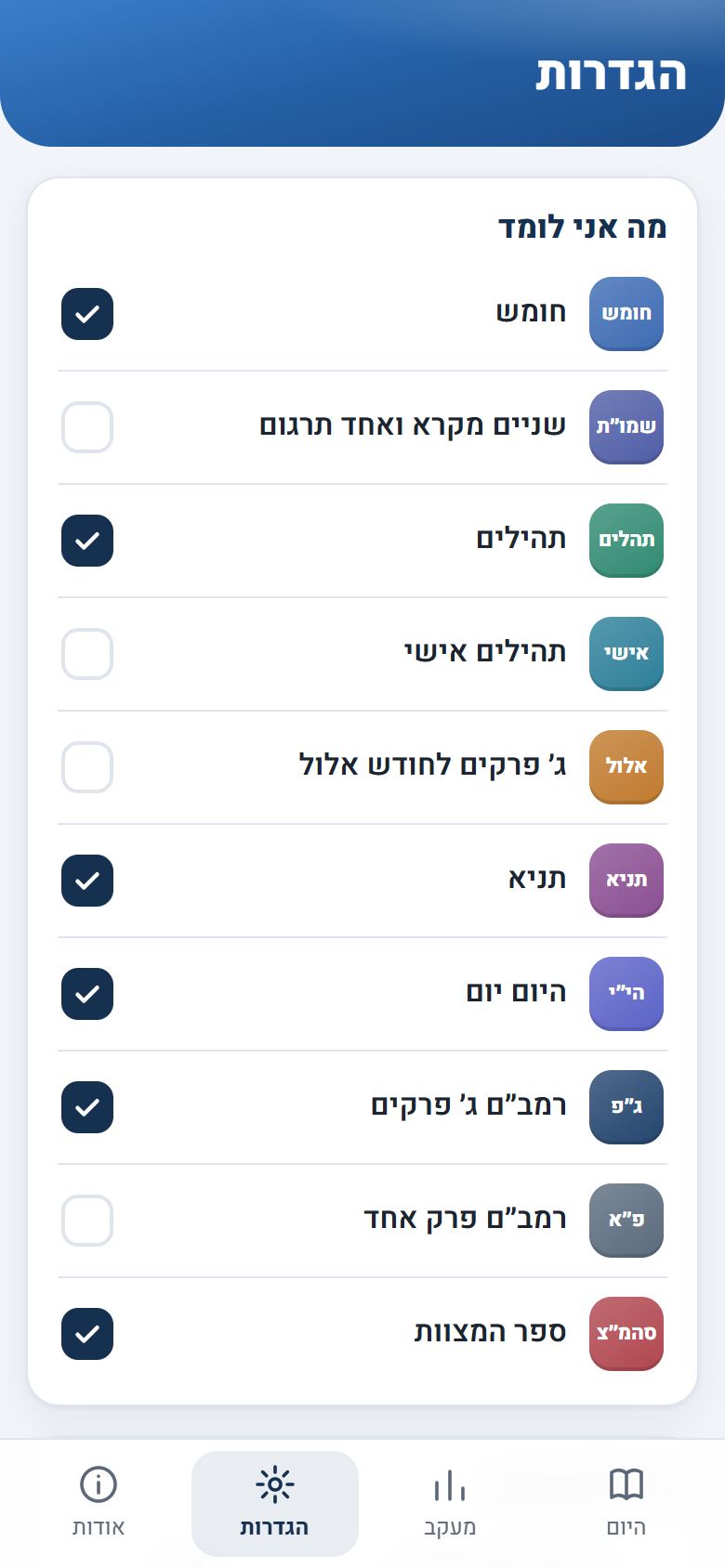
בחירת הלימודים
בפתיחה הראשונה בוחרים מה לומדים כל יום. אפשר לשנות את הבחירה בכל זמן בהגדרות. שם גם בוחרים ארץ ישראל או חוץ לארץ (לחומש בשבועות של חגים), ומתי ללמוד שניים מקרא: ביום שישי את כל הפרשה, או כל יום את העלייה של היום.
מסך היום: מה לומדים היום
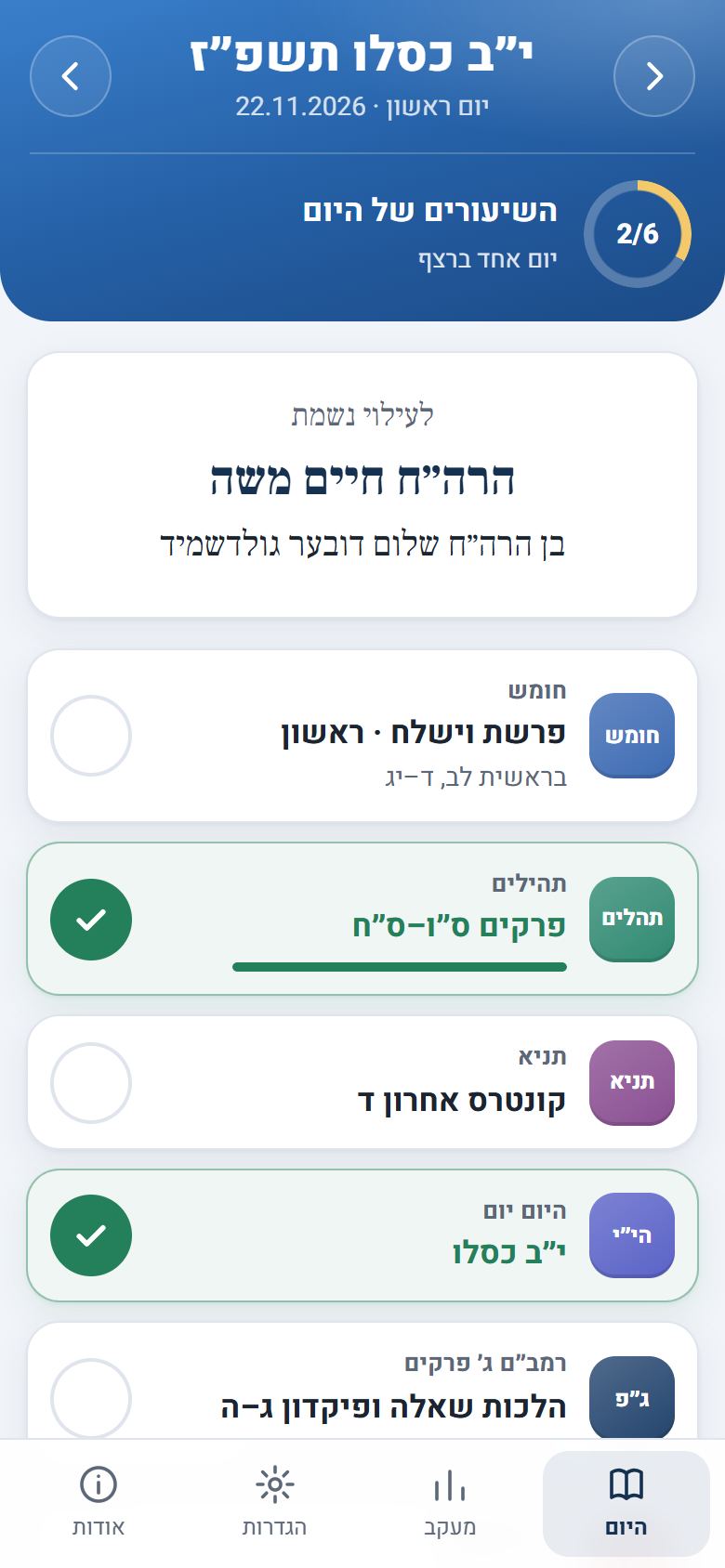
במסך הראשי מופיעים התאריך העברי, כמה מהלימודים כבר סימנת, והשיעור של היום בכל לימוד. לחיצה על העיגול בצד מסמנת שלמדת. לחיצה על השיעור עצמו פותחת את הטקסט. החיצים בראש המסך עוברים ליום הקודם או הבא.
כשמסיימים ספר (חומש, ספר תהילים, חלק בתניא, ספר ברמב״ם או ספר המצוות) מופיעה הודעת סיום. בימים שלא אומרים בהם תחנון כתוב על כך במסך היום, ובמוצאי שבת וחג האפליקציה שואלת מה למדת בימים שעברו.
קריאת השיעור
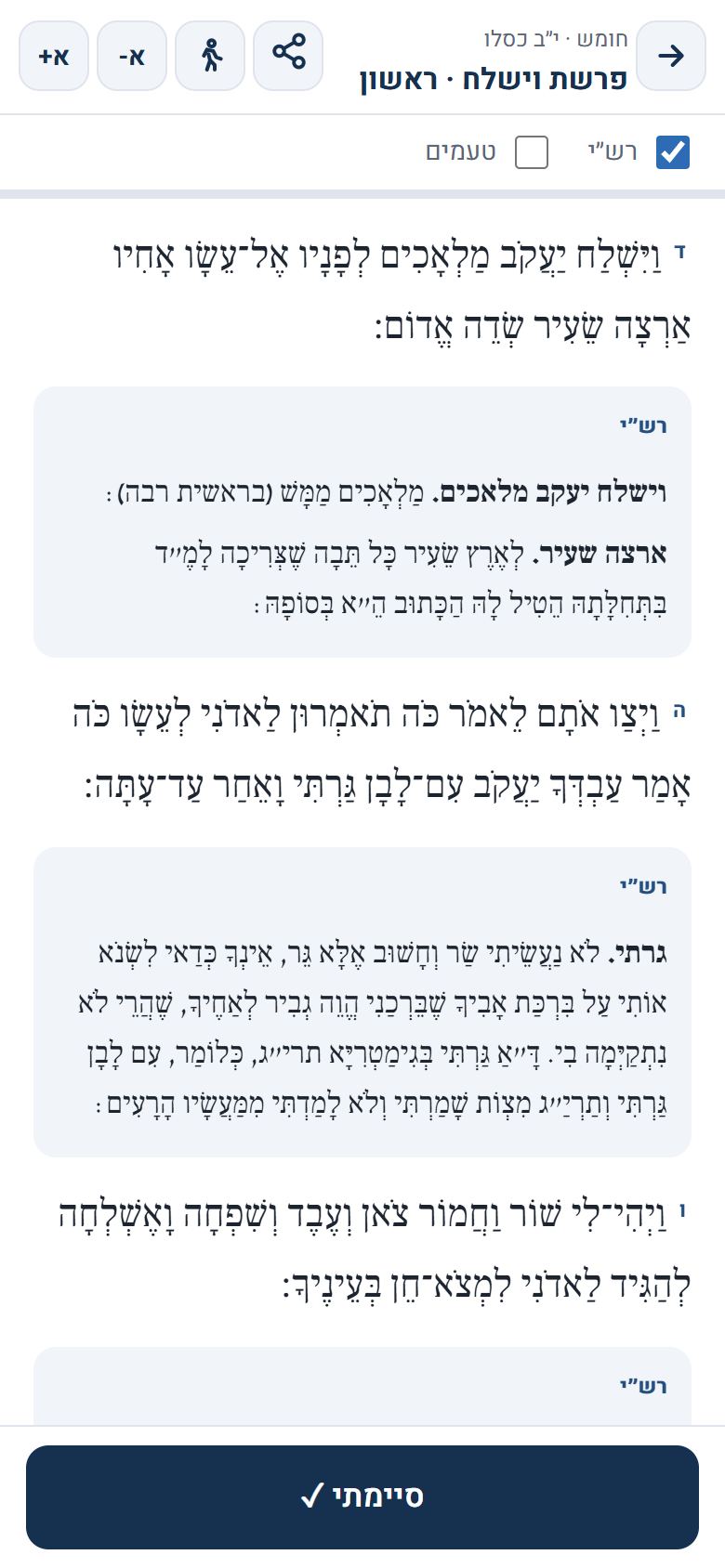
הטקסט נפתח בתוך האפליקציה: חומש עם רש״י, תהילים, תניא לפי החלוקה של השנה (פשוטה או מעוברת), רמב״ם וספר המצוות. הכפתורים א+ וא- מגדילים ומקטינים את האותיות, ובחומש אפשר להציג או להסתיר את רש״י ואת הטעמים. האפליקציה זוכרת עד איפה קראת, ובפעם הבאה ממשיכים משם. בסוף לוחצים ״סיימתי״, והשיעור מסומן.
בשיעורים שיש בהם כמה חלקים (תהילים, ג׳ פרקי רמב״ם) אפשר לסמן כל פרק בנפרד.
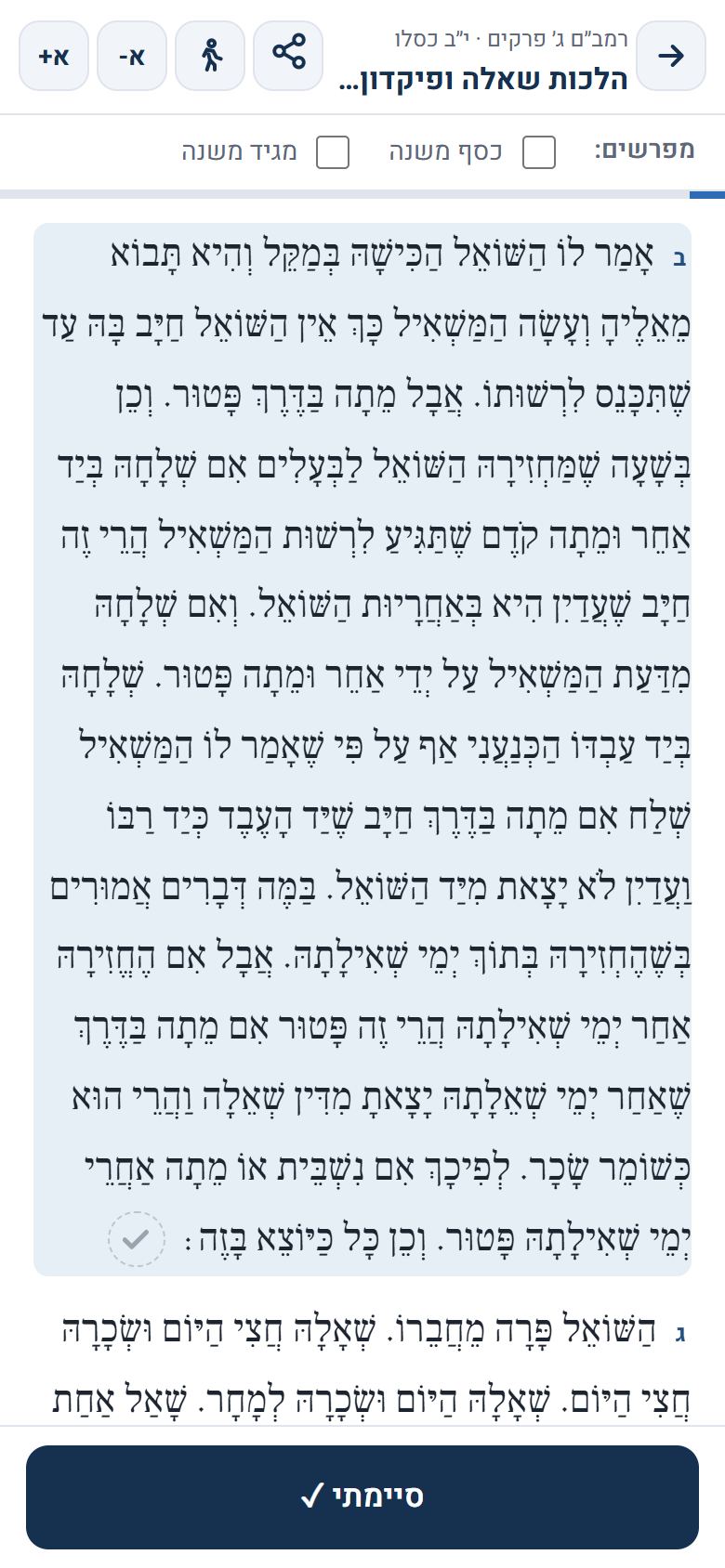
רמב״ם: הלכה אחרי הלכה
בסוף כל הלכה יש סימן ✓ קטן. לחיצה עליו (או לחיצה ארוכה על ההלכה) מסמנת אותה ומעבירה להלכה הבאה. פס דק בראש המסך מראה כמה הלכות סימנת, והפרק מסומן כשכל ההלכות שלו סומנו. מתחת לכל הלכה אפשר להציג את הכסף משנה והמגיד משנה.
מצב הליכה והקראה בקול
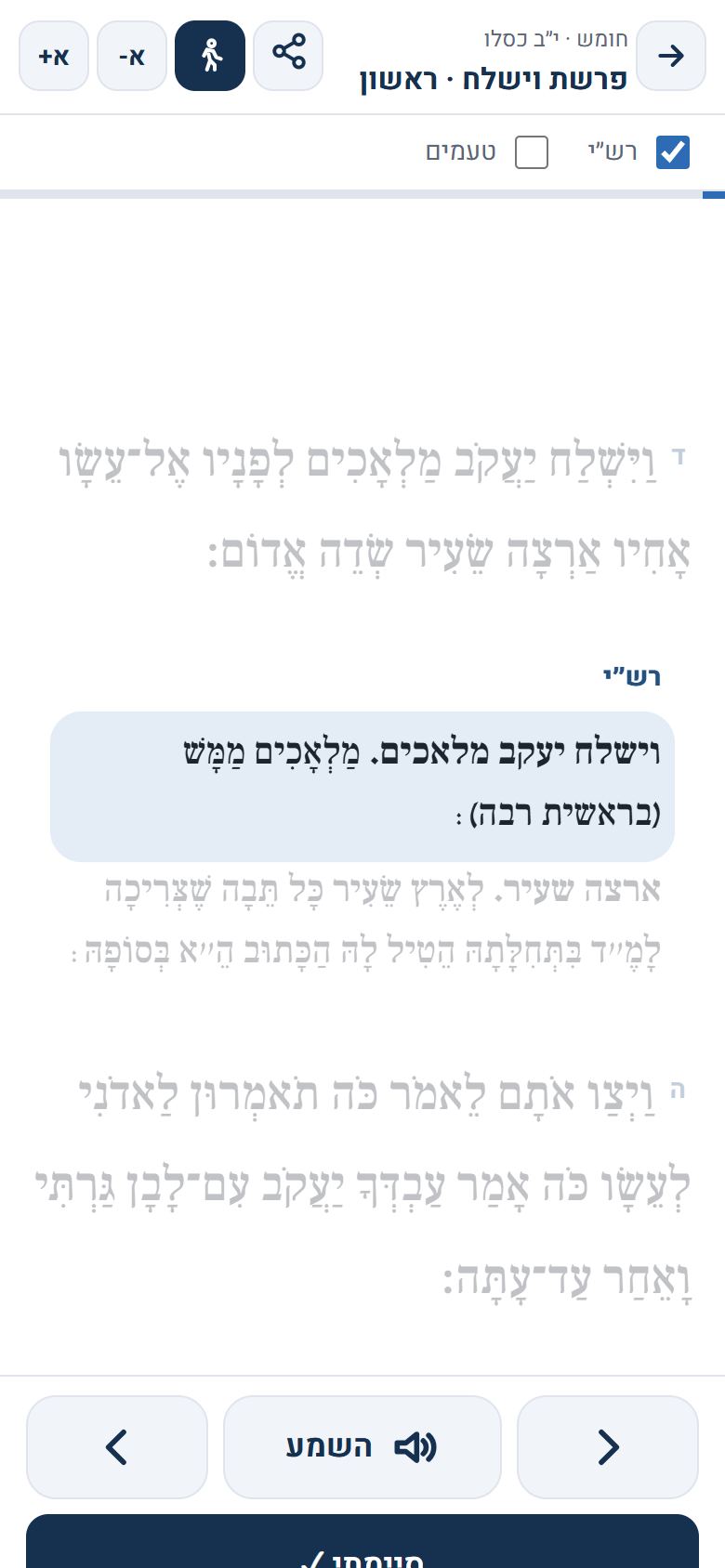
מצב הליכה נועד ללימוד בדרך, בהליכה או בהמתנה. לוחצים על כפתור האיש ההולך בראש מסך הקריאה: האותיות גדלות, ופסקה אחת מודגשת בכל פעם. לחיצה בחלק התחתון של המסך עוברת לפסקה הבאה, ולחיצה בחלק העליון חוזרת אחורה. המסך לא נכבה כל זמן שמצב ההליכה פתוח.
הכפתור ״השמע״ מקריא את הפסקאות בקול ועובר לבאה לבד, בקול העברי של המכשיר. בהגדרות, תחת ״קול הקראה״, בוחרים קול ומהירות. ב־Windows ובאנדרואיד אפשר להוסיף קול גבר בעברית; באייפון יש רק קול אישה.
שיתוף
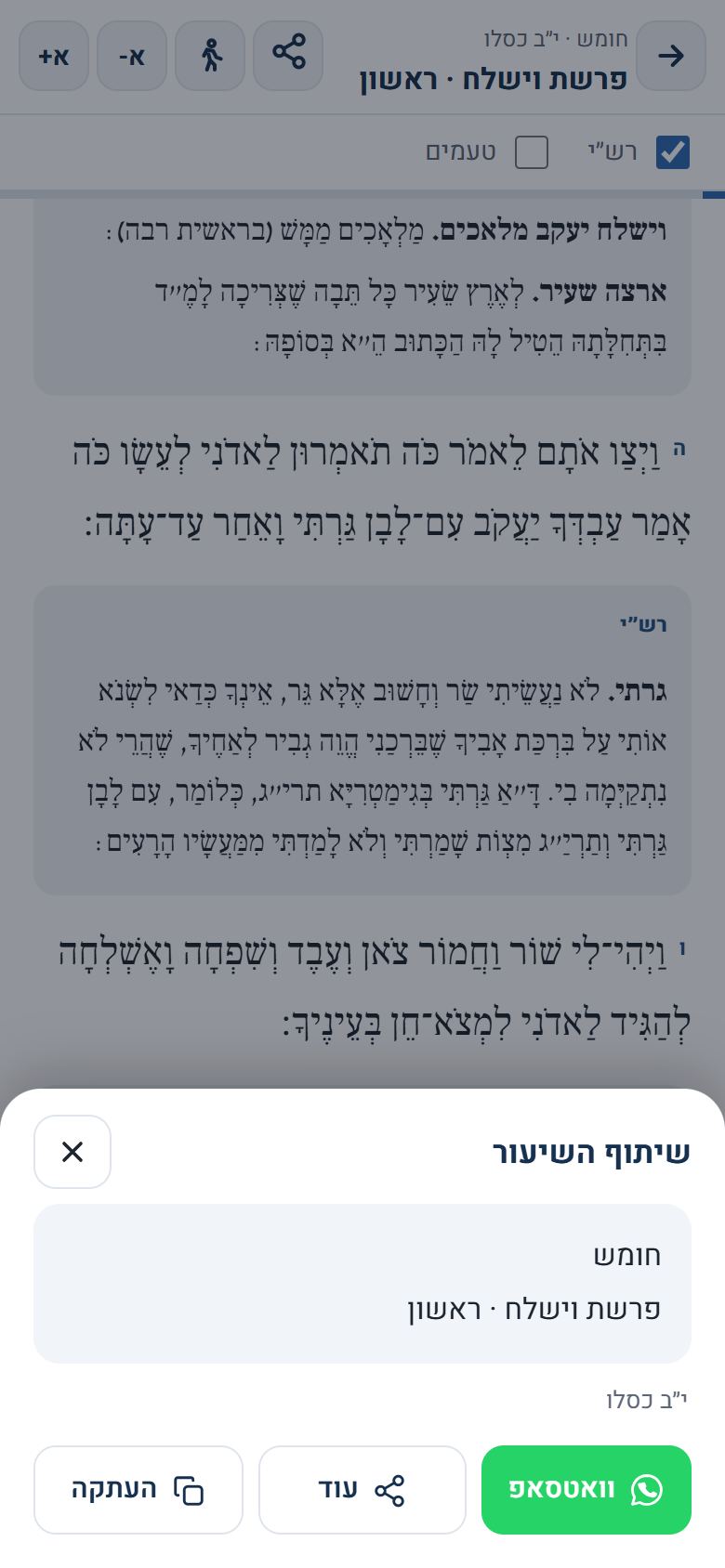
- שיתוף השיעור: כפתור השיתוף בראש מסך הקריאה שולח בוואטסאפ את שם השיעור והתאריך, עם קישור שפותח בדיוק את השיעור הזה.
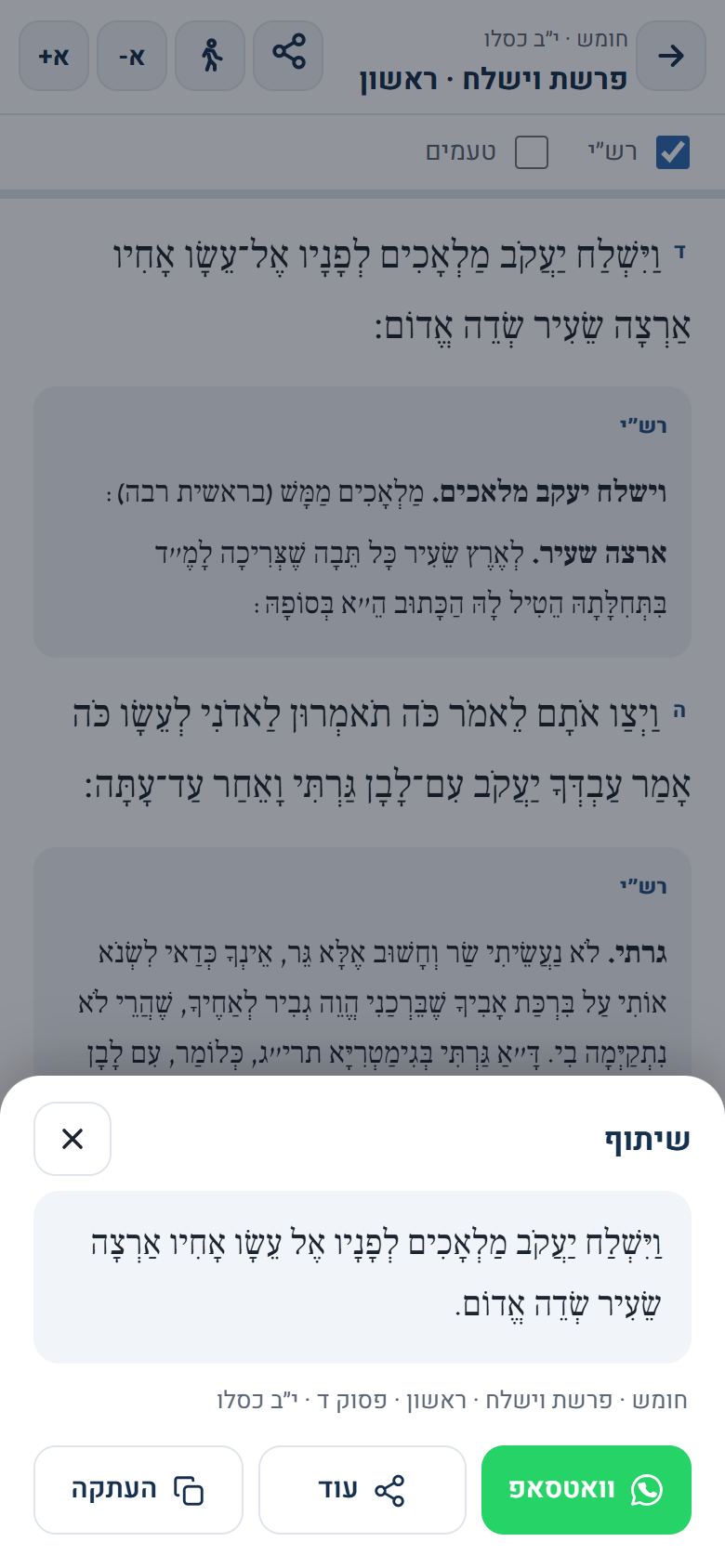
- שיתוף פסוק או הלכה: לוחצים על מספר הפסוק או ההלכה, או מסמנים קטע בטקסט ולוחצים ״שיתוף״. אפשר לשלוח בוואטסאפ, להעתיק, או לשתף באפליקציה אחרת. הקישור פותח את השיעור באותו פסוק.
- שיתוף האפליקציה: במסך ״אודות״ לוחצים ״שיתוף האפליקציה״ ושולחים לחברים.
מעקב והשלמה
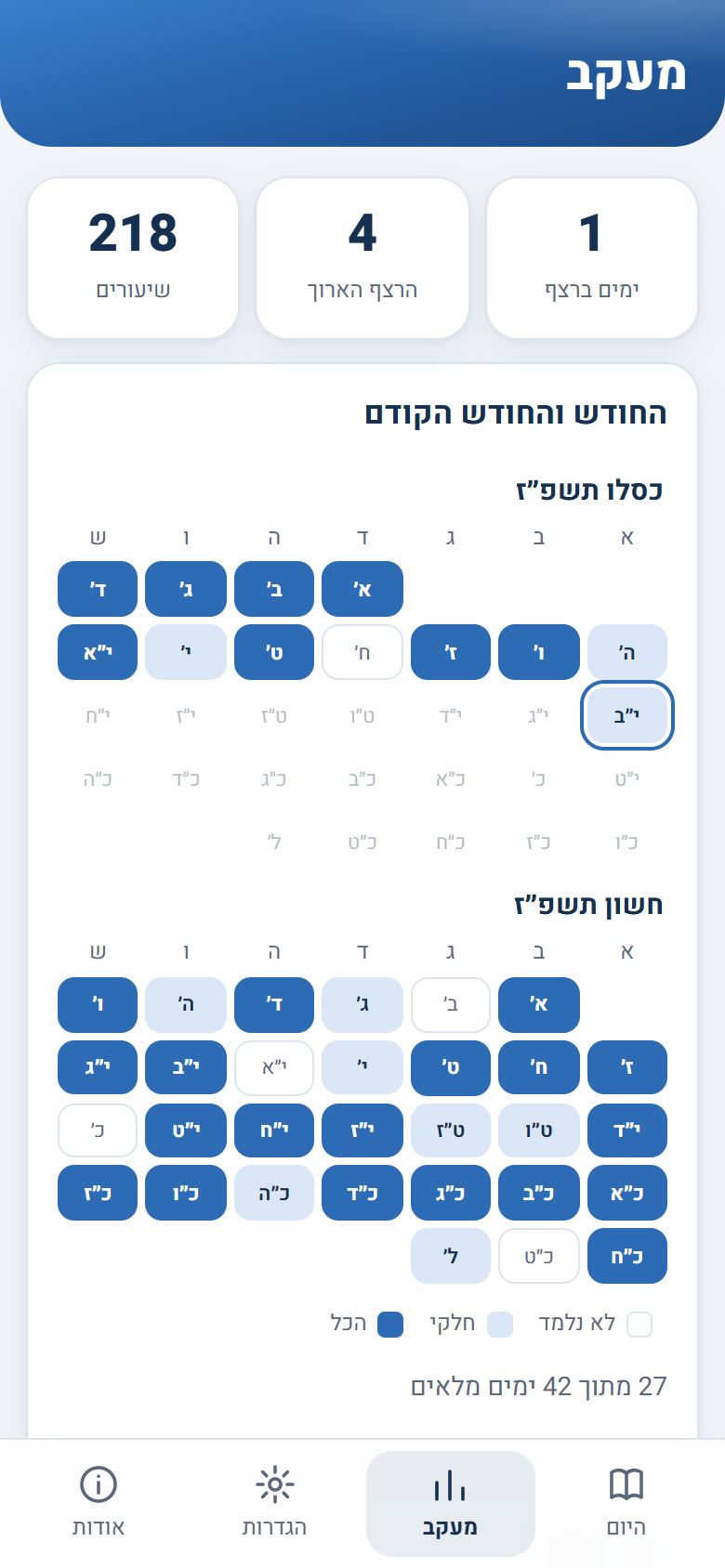
במסך ״מעקב״ רואים כמה ימים ברצף למדת, את הרצף הארוך ביותר, ולוח של החודש העברי הנוכחי והחודש הקודם: יום שלמדת בו הכל צבוע בכחול כהה, יום חלקי בכחול בהיר. לחיצה על יום פותחת אותו. מתחת יש את ההשלמה של כל לימוד.
אם פספסת ימים, במסך היום מופיע ״להשלים״ עם הימים שעוד לא סימנת ב־60 הימים האחרונים, מהישן לחדש, כדי להמשיך מהמקום שבו עצרת.
תהילים: פרק לבחירה ותהילים אישי
״פרק תהילים לבחירה״ במסך היום פותח כל פרק מ־1 עד 150. בתהילים אישי מוסיפים אנשים לפי יום ההולדת העברי (או לפי תאריך לועזי או גיל), וכל אחד מקבל את הפרק לפי מספר שנותיו ועוד אחד. הפרק מתחלף לבד ביום ההולדת העברי. בלחיצה אחת אפשר להוסיף את הפרק של הרבי.
מתי מתחלף היום
בהגדרות, תחת ״תחילת היום״, בוחרים אם היום מתחלף בחצות, בשקיעה או בצאת הכוכבים, לפי עיר מהרשימה או לפי המיקום של המכשיר. אחרי ההחלפה מסך היום מראה את השיעורים של התאריך העברי הבא.
התקנה כאפליקציה
אין צורך בחנות אפליקציות. באנדרואיד ובמחשב, בכרום, לוחצים ״התקן״ בהודעה שבמסך היום. באייפון, בספארי, לוחצים על כפתור השיתוף ואז ״הוסף למסך הבית״. אחרי ההתקנה האפליקציה נפתחת ממסך הבית ועובדת גם בלי אינטרנט: השיעורים של היום ושל היומיים הבאים נשמרים מראש.
במחשב
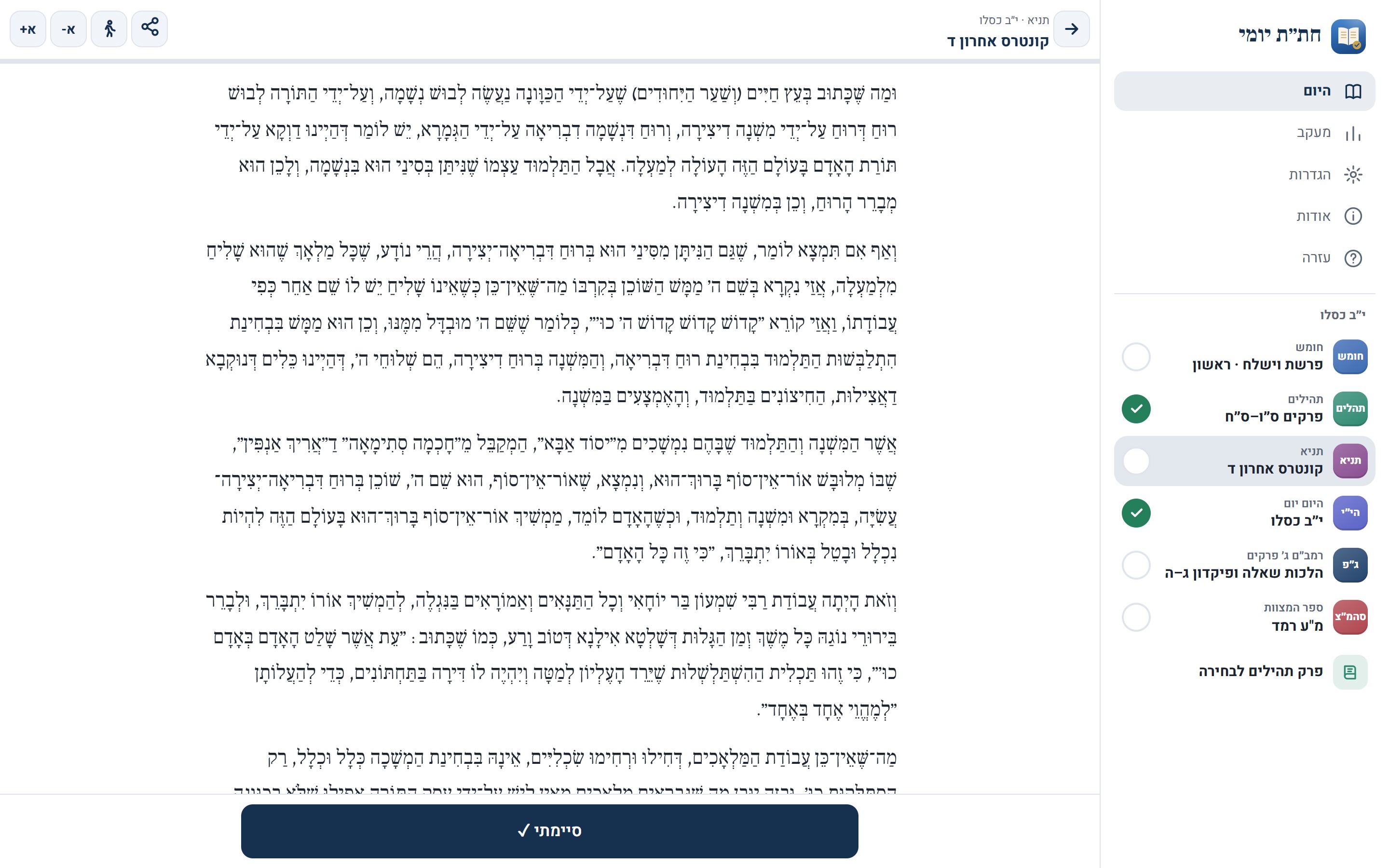
במסך רחב יש תפריט צד עם המסכים והשיעורים של היום. בוחרים שיעור בתפריט, והוא נפתח במרכז המסך, ואפשר לעבור משיעור לשיעור בלי לחזור למסך הראשי. המקלדת עובדת: Esc סוגר את השיעור, ובמצב הליכה החצים עוברים בין הפסקאות.
סנכרון בין מכשירים וגיבוי
בלי חשבון, כל מה שמסמנים נשמר רק במכשיר. כדי ללמוד בכמה מכשירים מתחברים בהגדרות עם Google, וההתקדמות וההגדרות מסתנכרנות. אפשר גם לשמור קובץ גיבוי ולטעון אותו במכשיר אחר. פרטים במדיניות הפרטיות.
יש שאלה או הצעה?
נשמח לשמוע: כתבו לנו בוואטסאפ או במייל.
meir.goldshmid@gmail.com
Help and guide
Daily Chitas puts the daily learning in one place: Chumash with Rashi, Shnayim Mikra, Tehillim, Tanya, Hayom Yom, Rambam (one or three chapters) and Sefer HaMitzvos. The day's portions are worked out from the Hebrew date, the texts open inside the app, and you mark what you learned. It is free, has no ads and works offline.
Choosing what you learn
The first time you open the app you pick your daily studies. You can change them any time in Settings, where you also choose Israel or the diaspora (for Chumash in holiday weeks) and when to learn Shnayim Mikra: the whole parsha on Friday, or the day's aliyah every day.
The Today screen
The main screen shows the Hebrew date, how many studies you marked, and today's portion of each. Tap the circle to mark a study done, or tap the portion to open the text. The arrows at the top go to the previous or next day.
Finishing a book (a Chumash, a book of Tehillim, a part of the Tanya, a book of the Rambam or Sefer HaMitzvos) shows a siyum message. On days without Tachanun the Today screen says so, and after Shabbat or Yom Tov the app asks what you learned on those days.
Reading the study
The text opens in the app: Chumash with Rashi, Tehillim, Tanya by the regular or leap-year division, Rambam and Sefer HaMitzvos. A+ and A- change the text size, and in Chumash you can show or hide Rashi and the cantillation marks. The app remembers where you stopped, so next time you continue from there. Tap Done at the end to mark the study.
Studies with several parts (Tehillim, three chapters of Rambam) can be marked part by part.
Rambam: halacha by halacha
Each halacha ends with a small ✓. Tap it (or long-press the halacha) to mark it and move to the next one. A thin bar at the top shows how many you marked, and a chapter is done when all its halachot are marked. Kessef Mishneh and Maggid Mishneh can be shown under each halacha.
Walk mode and read-aloud
Walk mode is for learning on the go. Tap the walking-person button at the top of the reader: the text gets bigger and one paragraph is highlighted at a time. Tap the lower part of the screen for the next paragraph and the upper part to go back. The screen stays on while walk mode is open.
Listen reads the paragraphs aloud with your device's Hebrew voice and moves on by itself. In Settings, under Read-aloud voice, pick the voice and speed. Windows and Android can add a male Hebrew voice; iPhone has only a female one.
Sharing
- Share a study: the share button at the top of the reader sends the study's name and date on WhatsApp, with a link that opens exactly that study.
- Share a verse or halacha: tap its number, or select some text and tap Share. Send it on WhatsApp, copy it, or share to another app. The link opens the study at that verse.
- Share the app: on the About screen, tap Share the app.
Progress and catching up
The Progress screen shows your current and best streak and a calendar of this Hebrew month and the one before: days where you learned everything are dark blue, partial days light blue. Tap a day to open it. Below is the completion of each study.
If you missed days, the Today screen shows Catch up with the unmarked days of the last 60 days, oldest first.
Tehillim: any chapter and personal Tehillim
Any Tehillim chapter on the Today screen opens any chapter from 1 to 150. In personal Tehillim you add people by their Hebrew birthday (or a civil date or age), and each gets the chapter for their age plus one, changing by itself on the Hebrew birthday. One tap adds the Rebbe's chapter.
When the day changes
In Settings, under Day starts at, choose midnight, sunset or nightfall, for a city from the list or your device's location. After the switch, the Today screen shows the next Hebrew date's studies.
Installing the app
No app store needed. On Android and on a computer, in Chrome, tap Install in the banner on the Today screen. On iPhone, in Safari, tap Share and then Add to Home Screen. The installed app opens from the home screen and works offline: today's and the next two days' texts are saved ahead.
On a computer
On a wide screen a side menu holds the screens and today's studies. Pick a study and it opens in the middle, and you can move from study to study without going back. The keyboard works: Esc closes the study, and in walk mode the arrow keys move between paragraphs.
Sync between devices and backup
Without an account, what you mark stays on the device. To use several devices, sign in with Google in Settings and your progress and settings sync. You can also save a backup file and load it on another device. See the privacy policy.
Questions or ideas?
We'd love to hear from you, on WhatsApp or by email.
meir.goldshmid@gmail.com